F1 is back in China for the first time in years. Here's how you can catch all of the action.
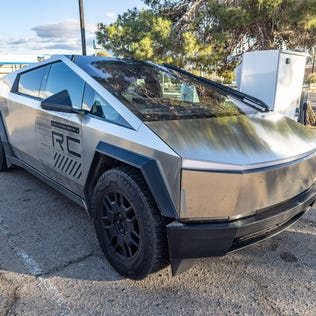
Tesla's Cybertruck recall put EV recalls back in the spotlight. Here's how to know whether such recalls are critical or just inconvenient.
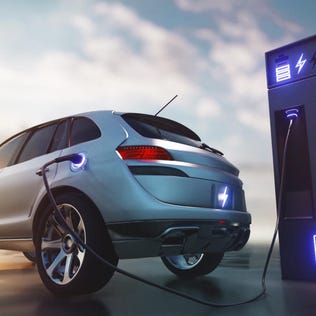
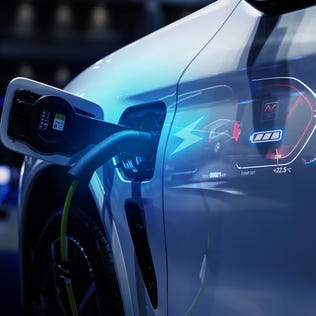
Electric vehicle charging locations are getting a boost on Google Maps, thanks to AI.
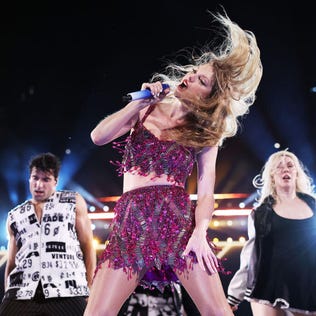
Swift's surprise double album is already breaking records as the most streamed album in a single day on Spotify this year.
Tax Day has come and gone. Now's the time to start tracking the status of your refund if you haven't received one yet.
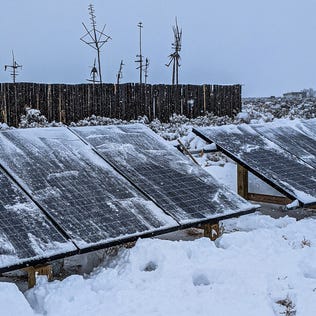
While providing me 100% energy independence for my off-grid home, solar panels demystified the enigma of electricity for me and increased my understanding of the movements of the Earth itself.
If you're still working on your taxes and need help, you can call the IRS, but you might experience long wait times.
The recall is another bump in the road for Elon Musk's polarizing electric vehicle.