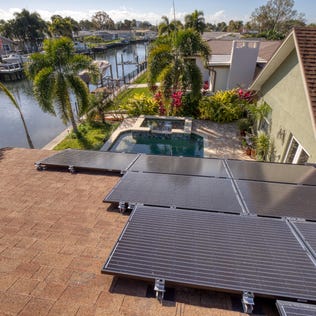
Learn how the state of Florida incentivizes its residents to go solar.
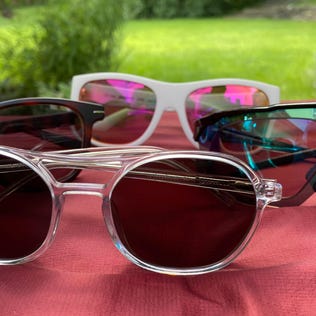
Looking to buy the best sunglasses online? Here's where to find them and how to get a discount at some of the most popular online retailers for prescription sunglasses.
A deregulated market means Ohioans could save a lot of money by shopping around on their energy bills, if they stay informed and choose carefully.
From subscription boxes to gym memberships, this app can help you identify – and cancel – your wasteful subscriptions.
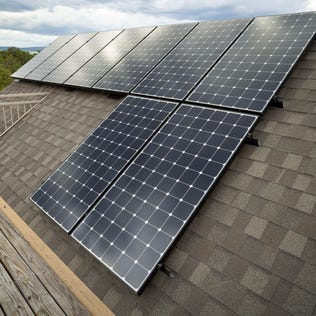
Not sure how many panels you need to hit your energy goals? This formula will help you calculate it.
No matter what kind of stovetop you have, we'll show you how to keep it clean.
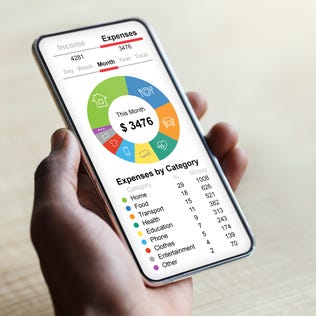
If Mint's disappearance left you needing a new budgeting app, this one is worth checking out.
Your body produces less collagen as you age, but you can keep your skin supple and your joints healthy by eating these foods.