Shared bank accounts are convenient, but they can hinder your financial autonomy.
Rooftop solar panel systems are expensive. But you don't need one to get your energy from the sun. Here's how to know if community solar is right for you.
The NFL draft continues tonight with rounds 2 and 3. You can watch every pick today and tomorrow on ABC, ESPN, ESPN2 and NFL Network.
If you're waiting for relief from high interest rates, it might not happen until 2025.
Many Windows 11 users will start seeing the Start menu ads over the next month.
There is a clear winner between these two TV technologies from Samsung, LG, Sony and TCL.
We'll tell you when to look for your Supplemental Security Income checks in May and why you're getting two payments.
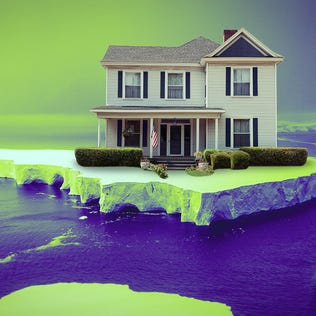
Extreme weather is the next hurdle for homebuyers.